Actions
Actions
Actions available to be assigned to SIM and Pools Rules are managed in the Actions subtopic of the SIM Cards module of the Enterprise Portal.
Note:
Since all Actions are maintained in one location, the Actions subtopic of the SIM Pools module redirects users to the Actions subtopic of the SIM Cards module.
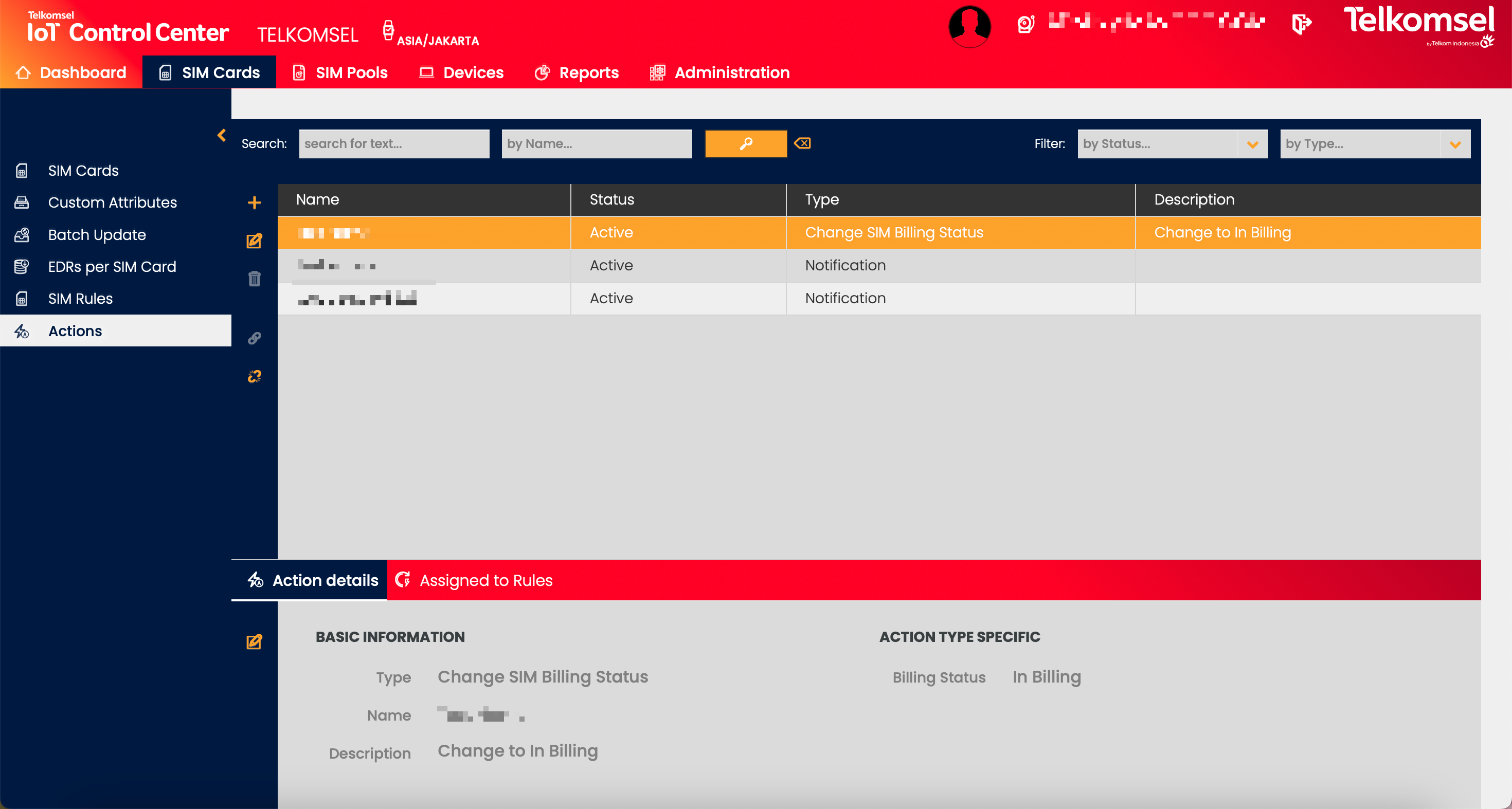
Search for an Action
The search option of the Actions module allows Users to retrieve a list of Actions by entering text into the Search field. Additional specific search fields are available:
- Name
Search results may be filtered with the criteria given in the Search bar.
Filters:
- Status
- Type
The defined search criteria can be removed by clicking on the Clear search  icon.
icon.

Create an Action
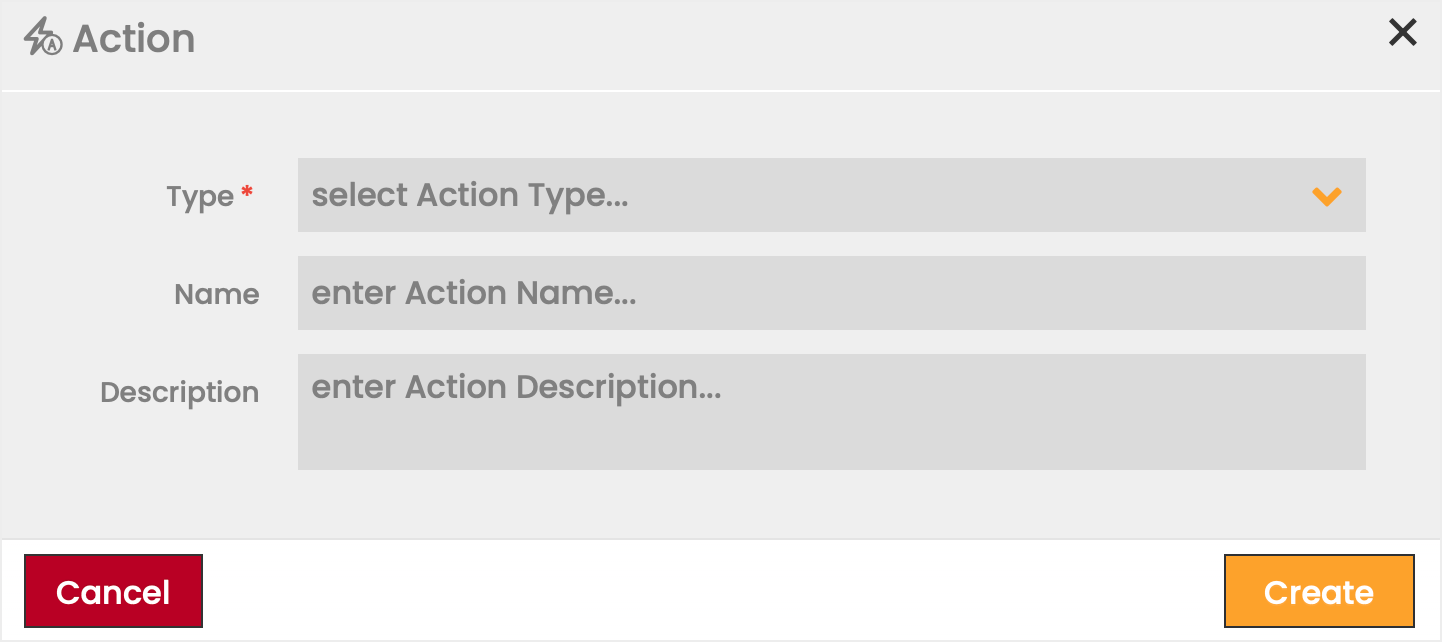
To create an Action:
- Click on the Add
 icon.
icon. - Define the information fields for the new Action.
Fields marked by a red asterisk are mandatory. - Click Create to save the Action.
Field | Description |
|---|---|
Type | Type of the Action. For a detailed description of the available Action Types see the Action Types section below. |
Name | Name of the Action. |
Description | Comments/remarks regarding the Action. |
Edit or Delete Actions
The settings of any Action can be edited while in the INACTIVE status.
- Click the Edit
 icon to modify the settings seen in the Action creation. Once the Action is activated, the data displayed in the edit dialog becomes read-only.
 - Click the Delete
 icon to delete an Action.
Update Action Status
Actions exist as ACTIVE, and INACTIVE in the Enterprise Portal. Initially, all Actions are created in INACTIVE status, however, only activated Actions can be assigned to Rules.
Note:
In order to assign an Action to a Rule, both the Action and the Rule must be in status ACTIVE.
- Click the Activate
 icon to change the status from INACTIVE to ACTIVE.
 - Click the Deactivate
 icon to change the status from ACTIVE to INACTIVE.
Action Types
Note:
Additional Action Types may be induced with future updates of the CMP.
Action Type | Description |
|---|---|
Service Blocked for Rule Period | SIM Card is blocked from consuming data services until the end of the Rule Period (24 hrs/Billing Cycle). The Billing Status In Billing will remain, to allow the invoicing of any previous usage. |
Notification | A custom notification message is sent either via email or SMS, depending on the selected channel to the defined recipient(s) (email addresses or MSISDNs). SMS notifications can also be sent to the SIM Card that triggered the notification action. Note that the recipient addresses are not required to be associated with any CMP Account. Note: The SMS notification channel is an optional feature. If the feature is not available on the CMP instance, the SMS channel will not be available for selection. CMP provides the option to add placeholders from the placeholder dictionary to the notification message subject and body. The ICCID is automatically added as a SIM identifier to each notification. |
REST API Request | A specified REST API request is sent. CMP provides the option to add placeholders from the placeholder dictionary to the request body. |
Change SIM Billing Status | Change of SIM Card Billing Status to either In Testing, In Billing, Billing Ready, Suspended, or Retired. |
Change SIM Network Status | Change of SIM Card Network Status to either Active or Inactive. |
Change SIM Price Plan* | Change the SIM's subscription to a specified Price Plan. Note: This Action Type is only applicable to SIM Rules with the scope All SIM Cards in Context. |
Change SIM Service Profile* | Change the Service Profile assigned to the SIM. |
Account Notification* | A custom notification message is sent either via email or SMS, depending on the selected channel to the email address or MSISDN (depending on the defined channel) associated with the User(s) that have been assigned to receive Account Notifications. Note: The SMS notification channel is an optional feature. If the feature is not available on the CMP instance, the SMS channel will not be available for selection. Users can be set up to receive Account Notification by the Account Administrator in the Resource Manager.
By default, all Account Contacts eligible for notifications shall be notified. However, CMP provides an option (Limit notification to Roles) to narrow down the list of recipients to contacts belonging to one or many Person Types (i.e. Roles). If the Account has no contacts assigned with a Person Types that have been configured to receive notifications, the User is presented with a warning during Account creation. CMP provides the option to add placeholders from the placeholder dictionary to the notification message subject and body. The ICCID is automatically added as a SIM identifier to each notification. |
Change SIM APN Group* | Change the APN Group assigned to the SIM. |
XML Push API | Specify a static URL to which the message should be sent when a Rule is triggered. Users also have the option to create a custom Shared Secret at the Account level. Note that XML Push API Action can be assigned to a limited set of Rules only. |
*The Action Types marked with an asterisk are only available on Account level.
Actions - Extended Details
For Actions, it is possible to gain a quick view of the Action's details through the Extended Details menu.
Action Details
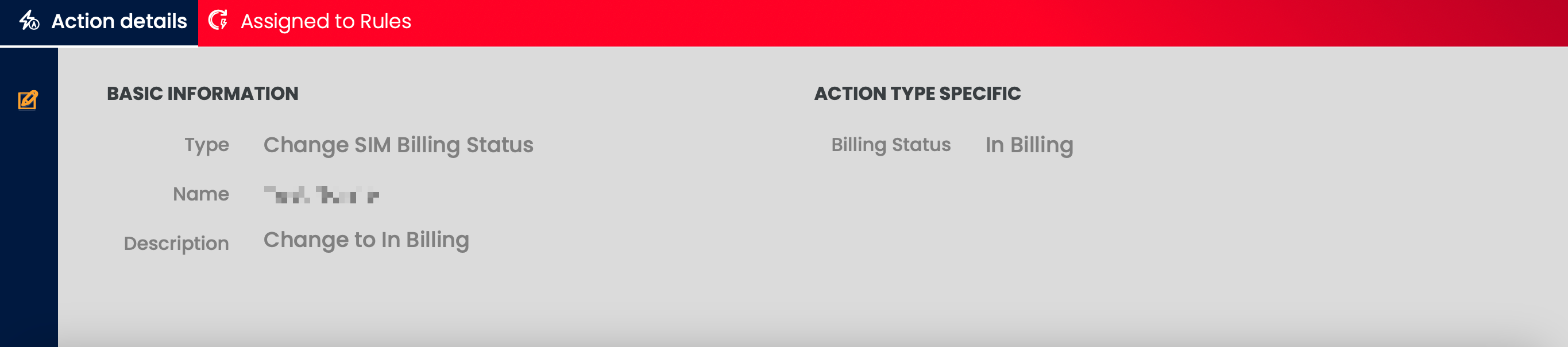
Action Details tab displays all the properties of the selected Action defined at the creation of the Action.
Note that the set of displayed fields may differ based on the type of the selected Action.
Clicking the Edit icon opens the Action's edit dialog; however, changing the details is only available for Actions in status Inactive.
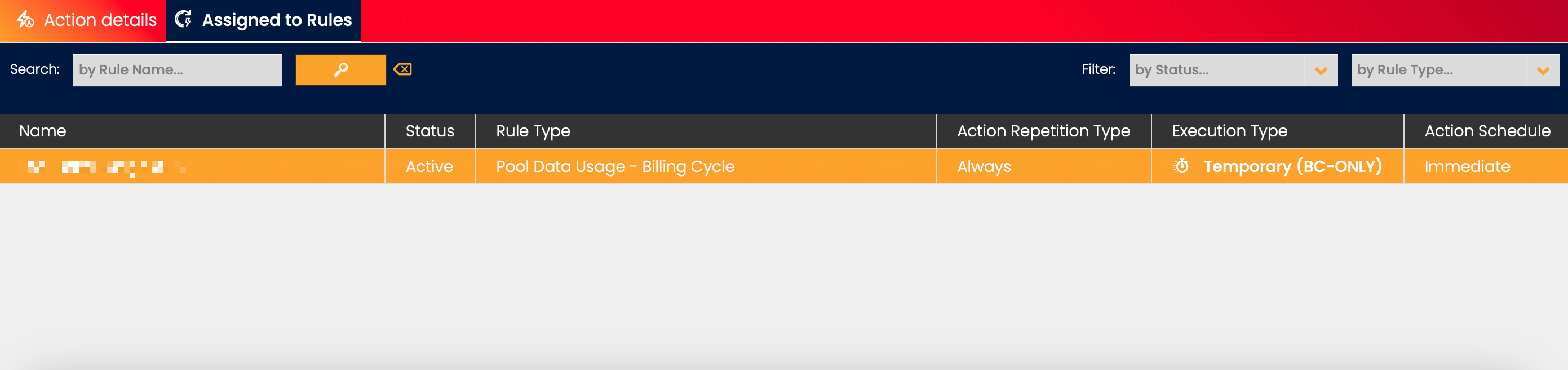
Assigned to Rules
Assigned to Rules tab provides a list of all the SIM and Pool Rules to which the selected Action is assigned. Rules can be searched and filtered by Name, Status, Rule Type, and Scope.
Clicking on the Rule Name redirects the User to the Rule in the Rules Grid.
Assign an Action to a Rule
Actions are assigned and removed from Rules in the Action section of the Rule Extended Details menu.
Note:
To assign an Action, both the Action and Rule must be active.
To assign an Action to a Rule:
- Select a Rule from the SIM or Pool Rules grid.
- Click on the Add icon in the Actions section.
- Define the information fields for the assignment.
Fields marked by a red asterisk are mandatory. - Click Assign to apply your selection.
Field | Description |
|---|---|
Action Type | Defines which options are available in the Action dropdown list (i.e. only Actions of the selected Action Type will be available). |
Action | One of the activated Actions related to the Action Type. |
Sequence | The order in which the Actions are listed for viewing (0-999999999). Note: The CMP initiates an Action when the corresponding Rule is triggered, regardless of Sequence order. |
Action Repetition Type | Defines how often can the Action be performed. The Action Repetition Type is defined by the selected Action Type and cannot be changed by the User. Once: Action will be applied only one time during the Billing Cycle. Always: Action will be applied every time the Rule conditions are met. |
*Execution Type | Execution Type is only available if Action Type Change SIM Billing Status or Change SIM Price Plan is selected.
Note: Temporary (BC-ONLY) changes are only applicable if the target Billing Status is Suspended or the target Price Plan is Postpaid. |